Choose article images because they help a reader verify or understand the subject. A screenshot of the actual workflow can show the nodes being discussed. A screenshot of its result can show what the workflow returned. Save the image's origin and permission alongside its bytes so the editorial review can inspect both.
This tutorial uses Real Image Manifest Validator v0.1.0, a free module released by AI Content Machine. It accepts one or two supplied JPEG or PNG files and checks their metadata and byte integrity without downloading images or calling a model. The module code is released under MIT. Its licence does not grant rights to the screenshot fixtures or third-party marks; review image permissions separately.
Choose evidence for the article you are writing
Begin with the claim the image should support. For a workflow tutorial, capture the relevant canvas or result with a fictional input. For an export tutorial, capture the actual exported page. A screenshot from another demonstration can be a useful test fixture, but describe that limited purpose rather than presenting it as evidence of the current run.
Distinguish a photograph, a screenshot and a generated illustration in the caption and provenance record. A generated diagram may explain an idea, but it cannot establish what appeared in an actual software execution.
One good image is often enough. Add a second only if it shows a different useful fact, such as the rejection path. Before saving either, inspect account names, browser tabs, execution details and visible tokens. Capture a safe view instead of exposing private information to make the image look more convincing.
Keep provenance beside the bytes
For each image, record its source or capture context, author or credit, permission basis, alternative text, caption, byte count and SHA-256. An original project screenshot should say who captured it and what permission applies. A public URL by itself says nothing about reuse rights.
Keep a human-readable provenance record even if a downstream validator accepts fewer fields. The current validator validates a caption and permission note; it does not independently check the author, licence or truth of either statement. A nonempty note must still be reviewed by a person.
Use alternative text to describe the relevant visual information. Use the caption for the demonstration context and credit. Avoid placing credentials, personal account identifiers or private execution URLs in either field.
If image collection begins in a form, n8n Form Trigger supports file inputs. Preserve the actual submitted bytes through the review path. Do not replace a reviewed image with whatever a remote URL returns later.
Validate type, size and hash together
The validator's manifest allows one or two images, using the paths assets/imagem-1.jpg, assets/imagem-1.png, assets/imagem-2.jpg or assets/imagem-2.png. Choose unique paths and use only the files the manifest declares.
For each image, its MIME value must match the extension. The declared byte count must match the decoded data and stay within the validator's 2 MiB per-file limit. The base64 representation must be canonical. The file signature must match the expected JPEG or PNG prefix.
Finally, calculate SHA-256 from the supplied bytes and compare it with both the manifest digest and the file digest. Checking two matching strings without hashing the bytes would miss a changed payload. The validator performs the byte calculation and rejects a mismatch.
These checks establish a narrow kind of consistency. A signature check does not fully decode the image; a digest does not tell you whether it depicts the right subject. The validator explicitly returns image_decoding_verified false, rights_verified_by_code false and publication_approved false. Keep those limits visible to the next workflow stage.
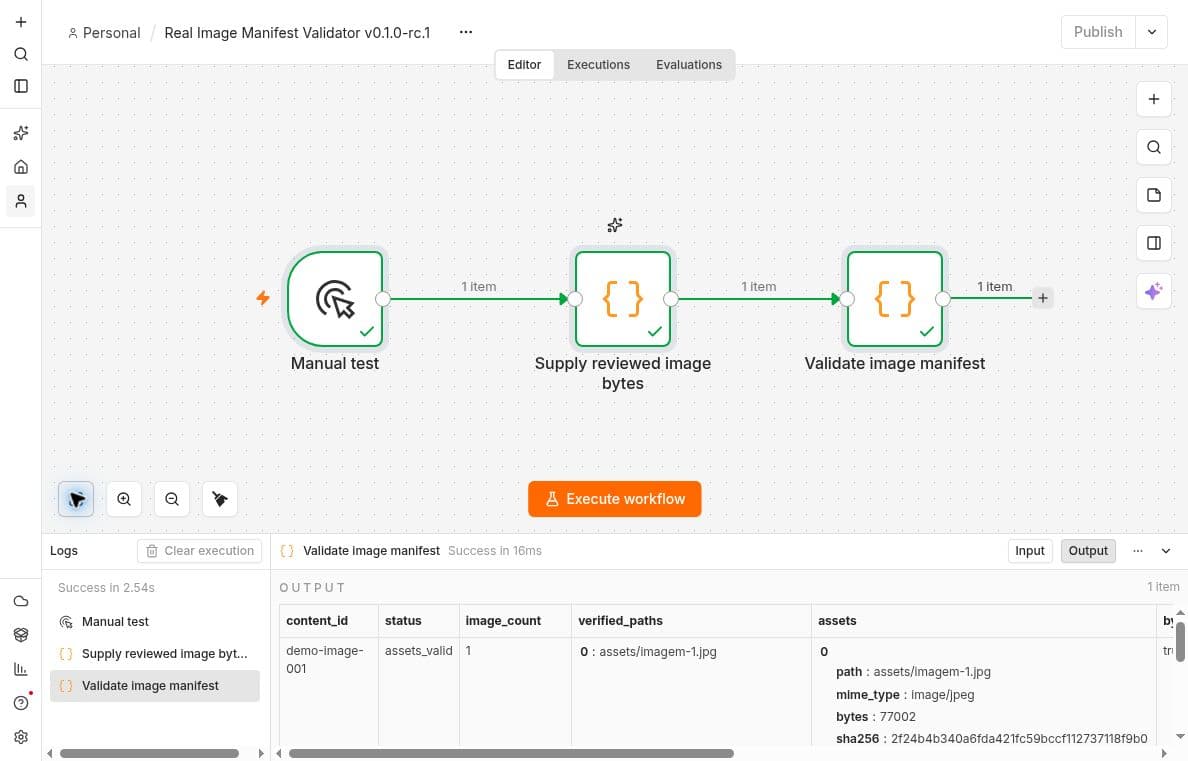
Screenshot: AI Content Machine isolated n8n acceptance test. The canvas still carries its pre-release label; the released v0.1.0 uses the same validator logic. The result shows one valid supplied image.
Carry the same assets into Markdown and exports
Use the declared relative path when referring to an image in the article. Keep the asset directory with the Markdown file when distributing it, so the reference survives extraction on another computer.
For standalone HTML, the project exporter embeds image bytes in the document. For PDF, it embeds JPEG or PNG data in the generated pages. Its package also contains the original asset files and an asset manifest. Recalculate file hashes if a conversion, crop or optimization changes the approved bytes, then review the new version.
n8n's Compression node can bundle supplied binary files. Packaging does not repair missing provenance, create image permission or validate what a picture shows. Do those checks before distributing the package.
Make the negative tests part of the demonstration
Use an owned screenshot with documented permission as the valid fixture. The project's existing first-brief canvas is used as a private byte-validation fixture; that role does not make it a screenshot of the image validator itself.
- Run the intact manifest and confirm that exactly the expected paths pass
- Change a byte while leaving the old digests in place and expect an integrity rejection
- Remove the permission note and expect a metadata rejection
- Restore the original data and permission note and confirm that the valid case passes again
- Open the image and decide whether it actually supports the article
- Check a deliberately unrelated but structurally valid image through human review; code alone cannot reject it for being off topic
The validator's local tests cover altered bytes and missing permission metadata. Separate live runs accepted the original file, rejected an empty permission note, rejected a changed manifest digest and passed again after the original sample was restored. The live integrity negative changed the digest; the byte-change case was checked locally. None of these results asserted decoding, rights or publication approval. Keep the execution record with the tested revision. The release changed version labels while preserving the tested validator logic.
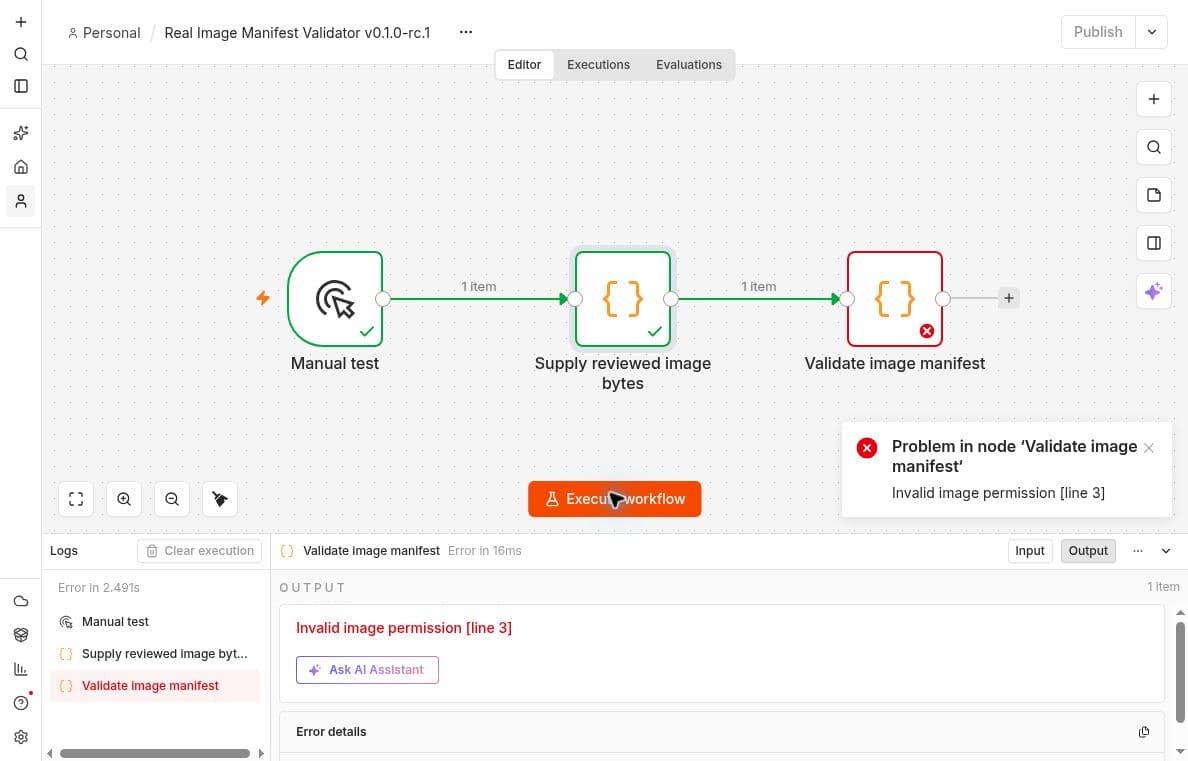
Screenshot: The same isolated test rejects a missing permission note before the image package can advance. This checks the presence of metadata, not the legal validity of a permission statement.
Review before distribution
Use the manifest to make a small, inspectable bundle: the article, its one or two images, their provenance and their measured digests. Ask the editor to review the image itself, the caption and the permission record together.
The verified-source brief tutorial applies the same discipline to supporting sources. Download the Real Image Manifest Validator to automate the repeated file checks. Its sample intentionally omits image bytes; supply your own reviewed image and manifest before running it. The final decision about relevance, reuse rights and publication stays with the reviewer.